Adding/Editing a Lesson
4. Building a Lesson
4.4. Moving Your Lesson Forward
Once you have added your first content or question page, you reach the next screen which displays your page title/type/jumps (ie where the responses take the student to) and actions you can take next. You can either see the content/questions you created in an expanded or collapsed view:
- Collapsed view
- This gives a brief outline of the lesson structure.
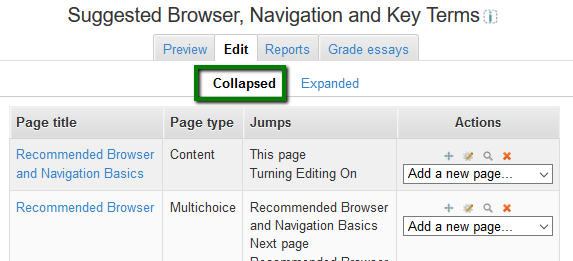
- This gives a brief outline of the lesson structure.
- Expanded view
- This shows more detail as in the screenshot below

- This shows more detail as in the screenshot below
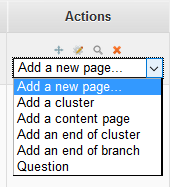
- The Actions icons allow you to move (if you have more than one), edit, preview or delete your pages.
- The drop down (in the expanded view these are the options above the and below the page) allows you to create another page of your choice
Ending your lesson
- To bring the lesson to a close, select the "End of Lesson" option from the Jump menu on any relevant page settings.
Background Colour
Font Face
Font Kerning
Font Size
Image Visibility
Letter Spacing
Line Height
Link Highlight
Text Colour