
Adding Resources
URL
The URL resource enables a teacher to provide a web link as a course resource. Anything that is freely available online, such as documents or images, can be linked to; the URL doesn’t have to be the home page of a website. The URL of a particular web page may be copied and pasted or a teacher can use the file picker and choose a link from a repository such as Flickr, YouTube or Wikimedia (depending upon which repositories are enabled for the site).
There are a number of display options for the URL, such as embedded or opening in a new window and advanced options for passing information, such as a student's name, to the URL if required.
Note that URLs can also be added to any other resource or activity type through the text editor.
Adding a URL resource to your course
- Turn editing on
- Click 'Add an activity or resource' and select URL in the activity chooser
- The "Adding a new URL" screen will ask for a link name and a description (which may be required or optional according to the admin settings)
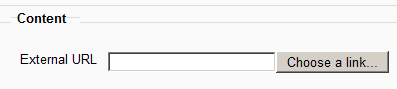
- Either enter the URL in the external URL field or click the "Choose a link" button to open the file picker and choose a URL YouTube, Picasa etc (depending on which repositories are enabled for the site
Course administration settings
Display options
- Automatic - Make the best guess at what should happen (probably what is wanted 99% of the time).
- Embed - Show the Moodle page with heading, blocks and footer. Show the title/description of the item and display the file directly in the page as well
- Open - No Moodle heading, blocks, footer or description - just show the file in the web browser (e.g. shows image, PDF, flash animation, taking up the whole browser window)
- In pop-up - Same as 'Open', but opens a new browser window to show this file (without the Moodle heading, blocks, etc) - this browser window also does not have all the menus and address bar in it.
The above options are the default display options. Options (see below) may be added/restricted by an administrator.
Background Colour
Font Face
Font Kerning
Font Size
Image Visibility
Letter Spacing
Line Height
Link Highlight
Text Colour